

.globl _start
_start:
#.globl _start # these two line to stop warning message and are not important
#_start: #
| Contents |
1 Getting Started
I am assuming at this point that you have already visited the Downloads page, and got the necessary GNU Toolchain. Also on the downloads page is a file called OS Template. Please download this and extract its contents to a new directory.
2 The Beginning
Now that you have extracted the template, create a new file in the ‘source’ directory called ‘main.s’. This file will contain the code for this operating system. To be explicit, the folder structure should look like:
build/
   (empty)
source/
   main.s
kernel.ld
LICENSE
Makefile
Open ‘main.s’ in a text editor so that we can begin typing assembly code. The Raspberry Pi uses a variety of assembly code called ARMv6, so that is what we’ll need to write in.
Copy in these first commands.
.globl _start
_start:
The .section command simply tells the assembler which section to put the code in, from this point until the next .section or the end of the file.
The next two lines are there to stop a warning message and aren’t all that important.[2]
3 The First Line
Now we’re actually going to code something.
Copy the following instruction.
I shall need to answer two questions here, what is a register, and how is 0x20200000 a number?
A register is a tiny piece of memory in the processor, which is where the processor stores the numbers it is working on right now. There are quite a few of these, many of which have a special meaning, which we will come to later.
Importantly there are 13 (named r0,r1,r2,…,r9,r10,r11,r12) which are called General Purpose, and you can use them for whatever calculations you need to do.
Since it’s the first, I’ve used r0 in this example, but I could very well have used any of the others. As long as you’re consistent, it doesn’t matter. 0x20200000 is indeed a number. However it is written in Hexadecimal notation. To learn more about hexadecimal expand the box below:
4 Enabling Output
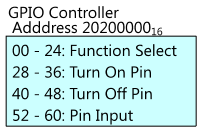
Having read the manual, I know we’re going to need to send two messages to the GPIO controller. We need to talk its language, but if we do, it will obligingly do what we want and turn on the OK LED. Fortunately, it is such a simple chip, that it only needs a few numbers in order to understand what to do.
These commands enable output to the 16th GPIO pin.
First we get a necessary value in r1, then send it to the GPIO controller. Since the first two instructions are just trying to get a value into r1, we could use another ldr command as before, but it will be useful to us later to be able to set any given GPIO pin, so it is better to deduce the value from a formula than write it straight in.
The OK LED is wired to the 16th GPIO pin, and so we need to send a command to enable the 16th pin.The value in r1 is needed to enable the LED pin. The first line puts the number 110 into r1.
The mov command is faster than the ldr command, because it does not involve a memory interaction, whereas ldr loads the value we want to put into the register from memory.
However, mov can only be used to load certain values[4]. In ARM assembly code, almost every instruction begins with a three letter code. This is called the mnemonic, and is supposed to hint at what the operation does.
mov is short for move and ldr is short for load register. mov moves the second argument #1 into the first r1.
In general, # must be used to denote numbers, but we have already seen a counterexample to this.
The second instruction is lsl or logical shift left. This means shift the binary representation for the first argument left by the second argument. In this case this will shift the binary representation of 110 (which is 12) left by 18 places (making it 10000000000000000002=26214410).If you are unfamiliar with binary, expand the box below:
5 A Sign Of Life
Now that the LED is ready to turn on, we need to actually turn it on. This means sending a message to the GPIO controller to turn pin 16 off. Yes, turn it off.
The chip manufacturers decided it made more sense[5] to have the LED turn on when the GPIO pin is off. Hardware engineers often seem to take these sorts of decisions, seemingly just to keep OS Developers on their toes. Consider yourself warned.
Hopefully you should recognise all of the above commands, if not their values. The first puts a 1 into r1 as before. The second shifts the binary representation of this 1 left by 16 places. Since we want to turn pin 16 off, we need to have a 1 in the 16th bit of this next message (other values would work for other pins). Finally we write it out to the address which is 4010 added to the GPIO controller address, which happens to be the address to write to turn a pin off (28 would turn the pin on).
6 Happily Ever After
It might be tempting to finish now, but unfortunately the processor doesn’t know we’re done.
In actuality, the processor never will stop. As long as it has power, it continues working.
Thus, we need to give it a task to do forever more, or the Raspberry Pi will crash (not much of a problem in this example, the light is already on).
The first line here is not a command, but a label.
It names the next line loop$. This means we can now refer to the line by name.
This is called a label. Labels get discarded when the code is turned into binary, but they’re useful for our benefit for referring to lines by name, not number (address).
By convention we use a $ for labels which are only important to the code in this block of code, to let others know they’re not important to the overall program.
The b (branch) command causes the next line to be executed to be the one at the label specified, rather than the one after it.
Therefore, the next line to be executed will be this b, which will cause it to be executed again, and so on forever.
Thus the processor is stuck in a nice infinite loop until it is switched off safely.
The new line at the end of the block is intentional. The GNU toolchain expects all assembly code files to end in an empty line, so that it is sure you were really finished, and the file hasn’t been cut off. If you don’t put one, you get an annoying warning when the assembler runs.
7 Pi Time
So we’ve written the code, now to get it onto the pi.
Open a terminal on your computer and change the current working directory to the parent directory of the source directory.
Type make and then press enter.
If any errors occur, please refer to the troubleshooting section.
If not, you will have generated three files.
kernel.img is the compiled image of your operating system.
kernel.list is a listing of the assembly code you wrote, as it was actually generated.
This is useful to check that things were generated correctly in future.
The kernel.map file contains a map of where all the labels ended up, which can be useful for chasing around values.
To install your operating system, first of all get a Raspberry PI SD card which has an operating system installed already.
If you browse the files in the SD card, you should see one called kernel.img.
Rename this file to something else, such as kernel_linux.img.
Then, copy the file kernel.img that make generated onto the SD Card.
You’ve just replaced the existing operating system with your own.
To switch back, simply delete your kernel.img file, and rename the other one back to kernel.img.
I find it is always helpful to keep a backup of you original Raspberry Pi operating system, in case you need it again.
Put the SD card into a Raspberry Pi and turn it on.
The OK LED should turn on.
If not please see the troubleshooting page.
If so, congratulations, you just wrote your first operating system.
See Lesson 2: OK02 for a guide to making the LED flash on and off.
- [1]^ OK, I’m lying it tells the linker, which is another program used to link several assembled files together. It doesn’t really matter.
- [2]^ Clearly they’re important to you. Since the GNU toolchain is mainly used for creating programs, it expects there to be an entry point labelled _start. As we’re making an operating system, the _start is always whatever comes first, which we set up with the .section .init command. However, if we don’t say where the entry point is, the toolchain gets upset. Thus, the first line says that we are going to define a symbol called _start for all to see (globally), and the second line says to make the symbol _start the address of the next line. We will come onto addresses shortly.
- [3]^^ This tutorial is designed to spare you the pain of reading it, but, if you must, it can be found here SoC-Peripherals.pdf. For added confusion, the manual uses a different addressing system. An address listed as 0x7E200000 would be 0x20200000 in our OS.
- [4]^ Only values which have a binary representation which only has 1s in the first 8 bits of the representation. In other words, 8 1s or 0s followed by only 0s.
- [5]^ A hardware engineer was kind enough to explain this to me as follows:The reason is that modern chips are made of a technology called CMOS, which stands for Complementary Metal Oxide Semiconductor. The Complementary part means each signal is connected to two transistors, one made of material called N-type semiconductor which is used to pull it to a low voltage and another made of P-type material to pull it to a high voltage. Only one transistor of the pair turns on at any time, otherwise we’d get a short circuit.
- P-type isn’t as conductive as N-type, which means the P-type transistor has to be about 3 times as big to provide the same current. This is why LEDs are often wired to turn on by pulling them low, because the N-type is stronger at pulling low than the P-type is in pulling high.
- There’s another reason. Back in the 1970s chips were made out of entirely out of N-type material (‘NMOS’), with the P-type replaced by a resistor. That means that when a signal is pulled low the chip is consuming power (and getting hot) even while it isn’t doing anything. Your phone getting hot and flattening the battery when it’s in your pocket doing nothing wouldn’t be good.
- So signals were designed to be ‘active low’ so that they’re high when inactive and so don’t take any power. Even though we don’t use NMOS any more, it’s still often quicker to pull a signal low with the N-type than to pull it high with the P-type. Often a signal that’s ‘active low’ is marked with a bar over the top of the name, or written as SIGNAL_n or /SIGNAL. But it can still be confusing, even for hardware engineers!
Spot a mistake? You can help improve this tutorial on GitHub.
Baking Pi: Operating Systems Development by Alex Chadwick is licensed under a Creative Commons Attribution-ShareAlike 3.0 Unported License.Based on contributions at https://github.com/chadderz121/bakingpi-www.
.END
Categories: Uncategorized
 tlfong01.blog